Initial Set Up for Business Rules
Before business rules can be created in STEP, a one-time configuration must be completed that includes:
- Create System Setup object types to hold the business rules (Global Business Rules, Business Actions, Business Conditions, Business Functions, and Business Libraries)
- Assign a Setup Group parent for each object type
Each part of this setup is covered in the steps below. These steps can be carried out multiple times to separate different business rule types for organizational purposes.
Configuration
- In System Setup, expand Object Types & Structures.
- Right-click Setup Group type root and click New Object Type to display the Create Object Type dialog.

- Enter an ID and a Name (such as Global Business Rules) and then click Create.
- Optionally, if additional levels of organization are required to separate business conditions, business actions, and business libraries, right-click the object type you just created, and add the necessary additional object types. For example, name them Business Action Type, Business Condition Type, and Business Library Type.
- In Object Types & Structures, expand Basic Object Types, and then select one of the Business Action Types you just created (Business Action Type, Business Condition Type, or Business Library Type).
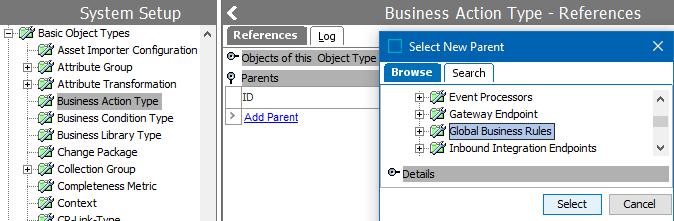
- On the References tab, open the Parents flipper and click the Add Parent link.
- In the Select New Parent dialog, select the setup group you just created.
- Click the Select button to make it a valid parent.
- Repeat this step for each object type previously created.
- From the Maintain menu, point to Insert, and then choose Setup Group Root to display the Create Setup Group Root dialog.
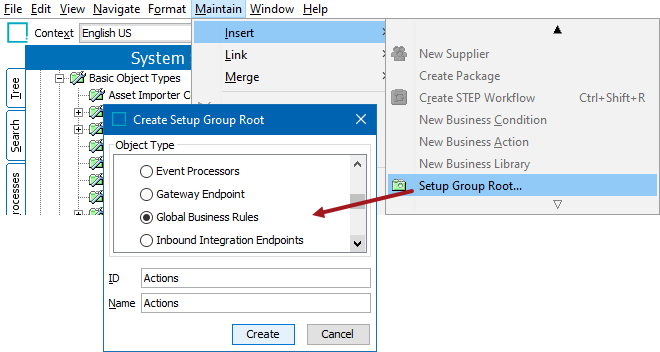
- Select the setup group object type you just created, enter an ID and a Name for one of the object types you created, and then click Create. An instance of the object type is created in System Setup.
- Repeat this step for other object types (Business Action Type, Business Condition Type, Business Function Type, or Business Library Type).
The following hierarchy shows a setup group object type instance named Global Business Rules that is configured to hold actions, conditions, and libraries.

For the next step, creating business rules, see the Creating a Business Rule or Library topic here.