Business Rules on Approval
Global business rules valid for the node being worked can be evaluated or executed during the approval process.
- When a condition evaluates to false, the approval fails, an error message is displayed, and no actions are executed.
- When a condition evaluates to true, the selected actions are executed.
Global business rules are set to run on approval in the Business Rule editor. For more information, see the On Approve section of the Editing a Business Rule topic here.
For information on running business rules during the import process, see the Business Rules in an Import Configuration topic here.
Evaluate Condition
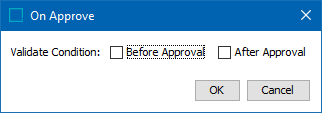
On conditions, specify to validate the condition before and/or after approval.
- Before Approval tests are run in the Main workspace.
- After Approval tests against the object as it would appear int he Approved workspace, assuming the approval succeeds. Technically, the object is approved, the condition is tested, and if the condition fails, the approval is rolled back. This allows a condition to test data that is not owned by the object being approved, such as inherited attribute values and references, referenced objects, children, etc., which could be different or non-existent in the Approved workspace. Since approved data is typically what is made available to downstream systems, this is a valuable option.
Note: The condition is only guaranteed to be met for a given object at the moment it is tested. If the condition depends on data owned by other objects, those objects can change and be approved without the condition being reevaluated. Therefore, it is common setup to test data on the objects that owns the data.
For details on adding a condition, see the Specifying a Business Condition Operation topic here.
Execute Action
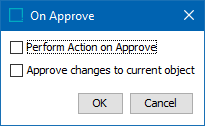
On actions, specify to execute the action on approve and/or to approve changes as well. Execution always takes place in the main workspace prior to the actual approval.
- Perform Action on Approve
- Approve changes to current object allows changes made to the object being approved to be included in the approval.
For details on adding a condition, see the Specifying a Business Action Operation topic here.
On Approve Process
When objects are selected for approval, and business rules are set to run On Approve, the steps below are followed:
- If there is nothing to approve, exit without running business rules.
- If there is data to approve, run actions configured to be executed on approval.
- Test all conditions configured to be validated before approval (for sub-conditions, run only until one of them fails). If one or more fails, go to step 8.
- If using an event-based OIEP, run event filter conditions and event generator actions. Exit and roll back if mandatory data is missing.
- Perform the approval, including standard dependency checks. If one or more fails, go to step 8.
- Run all conditions configured to be validated after approval (for sub-conditions, run only until one of them fails), and perform standard mandatory checks. If one or more fail, go to step 8.
- Run mandatory checks in Approved workspace. Exit and roll back if mandatory data is missing.
- Commit changes if all previous steps were successful, or roll back changes if any conditions failed.
Due to the order of the On Approve Process, note the following:
- Changes made by actions are not kept when conditions before or after approval are false.
- If the 'Approve changes to current object' option is not checked, and an action makes a change to the object being approved, a complete approval cannot be achieved.
- Actions can make changes that cause a condition to become true. For example, a condition could test for the existence of a reference that is added by an action during approval.
Note: If multiple conditions and actions are tested and/or executed on approval, the order in which the conditions are tested and the actions are executed is not guaranteed.
Business Rules that Run on Approve
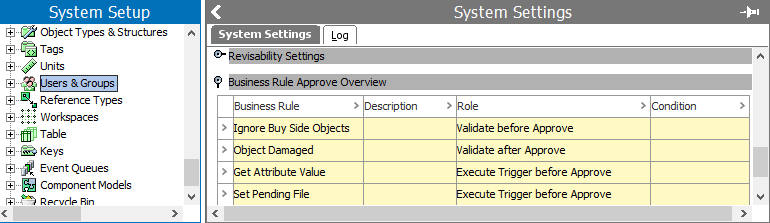
Follow the steps below to display a list of all business rules set to run on approval.
- In System Setup > Users & Groups > click the System Settings tab.
- Open the Business Rule Approve Overview flipper to display business rules configured to be evaluated or executed On Approve.