Business Action: Send Email
This operation can send emails without requiring JavaScript. Multiple email addresses are allowed and are resolved when the business action is run.
For example, an email can be sent when an object moves from one state of a workflow to another, or upon successful approval of an object.
Prerequisites
Before using this operation:
- Ensure a Simple Mail Transfer Protocol (SMTP) server is configured in the executing system.
- Ensure any STEP users who are to receive email have an accurate email address in STEP. This is stored on System Setup under the User & Groups node. Open the group and select the user to display the editor. On the User tab, under the Description flipper, the E-Mail parameter should display the email to be used.
- Create a business rule as defined in the Creating a Business Rule or Library topic here.
Configuration
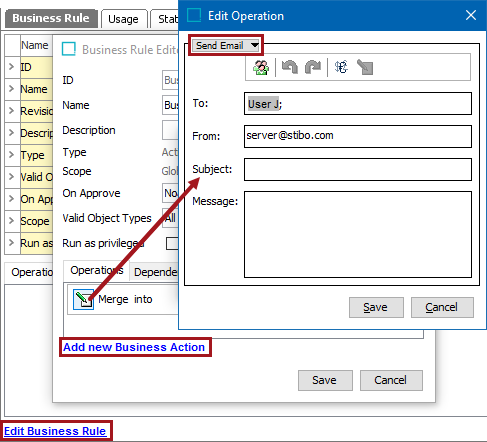
- On the Edit Operation dialog, select the Send Email option from the dropdown.
 Action buttons are enabled as the appropriate field is selected or action is performed.
- For the To parameter, click into the field and choose a method to provide the relevant email addresses, using the required format: user@domain.com. If an address uses the right format, errors are not detected until the business action is executed.
- Manually type one or more email addresses, separated by semicolon (;), comma (,), or a space ( ). Use the undo and redo buttons (
 ) as needed. Special characters can be added using the rich text editor (
 ).
).
- Click the Add recipient button (
 ) to display the Add Recipients dialog.
On the Add Recipients dialog, for the Get email address(es) from parameter, select an option and supply the required information:
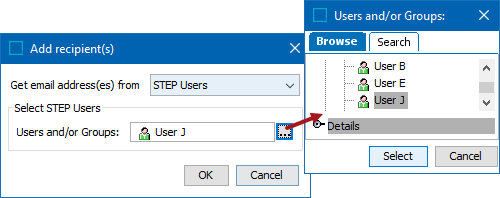
- When STEP Users is selected, the Users and/or Groups parameter is displayed. Click the ellipsis button (
 ) to display the Users and/or Groups dialog. Use Browse or Search to select one or more users and/or groups, and click the Select button.
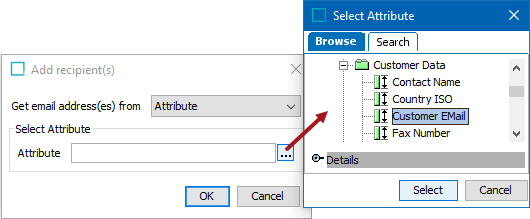
- When Attribute is selected, the Select Attribute parameter is displayed. An email address can be obtained from an attribute of an object on which the business action is executed. Click the ellipsis button () to display the Select Attribute dialog. Select an email attribute, and click the Select button.
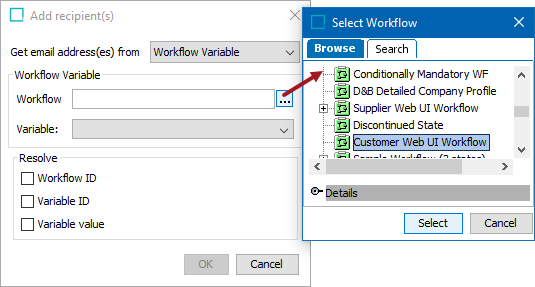
- When Workflow Variable is selected, the Workflow Variable and Resolve groups of parameters are displayed. An email address can be read from a workflow variable. This requires that the object the business action is executed on has been initiated in the specified workflow. For more information on workflow variables, see the Workflow Variables topic in the Workflows documentation here.
Click the ellipsis button () to display the Select Workflow dialog. Choose a workflow with variables and click the Select button. The available variables are displayed in the Variable dropdown.
- For the From parameter, the default address specified in the configuration properties file is displayed. If necessary, change the email address. Use the undo and redo buttons () as needed.
- For the Subject parameter, optionally type the text for the email subject. No error is returned when the subject is left blank. Use the undo and redo buttons () as needed.
- For the Message parameter, the following methods are available to add text for the email message. Use the undo and redo buttons () as needed.
- Special characters can be added using the rich text editor button ().
- Inline references can provide the recipient with information about which change caused the email to be sent. Click the insert inline reference button (
 ) to display the Inline Reference dialog.
Note: It is possible to refer to data that may not be relevant for all executions of the business action.
For the Reference dropdown, make a selection to update the dialog with the necessary parameters.
For Product, Classification, Asset or Entity references, the Object Selection and Attribute Selection groups of parameters are displayed. You can select the current object (the object the business action is executed on) as well as other specific objects.
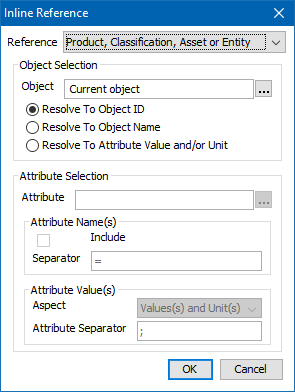
For Workflow Variable references, the Workflow Variable and Resolve groups of parameters are displayed. The object the business action is executed on must have been initiated in the specified workflow. Refer to the Workflow Variable section above for details on the parameters.
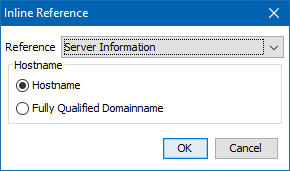
For Server Information references, the Hostname group of parameters are displayed.
- Click the Save button to add the operation to the business rule editor.
Configuration Notes
- If an invalid email address is found during execution, the action fails and results in an error. This can happen when part of an address has been left out by mistake, or if an attribute contains an unexpected value.
- If during execution no recipient is specified or if no valid email address can be found for any of the specified recipients, an error occurs.
- If an inline reference cannot be resolved during execution, an error occurs.