Creating a Bulk Update
The bulk update functionality allows a user to easily update a large number of objects in a single operation.
To perform a bulk update:
- Determine the data that should be updated.
- Use one of the following methods to select data to be updated and launch the Bulk Update wizard.
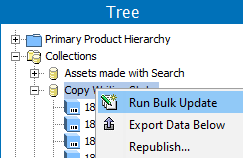
- Run on all objects in a single collection or multiple collections: In Tree, select one or more collections, right-click and choose Run Bulk Update.
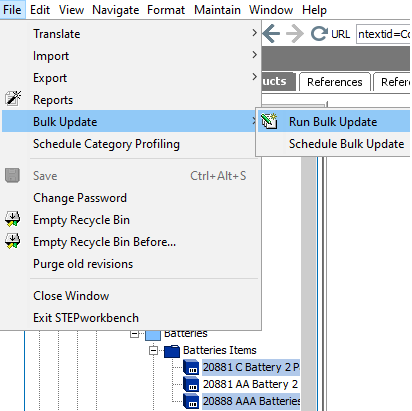
- Run on a single or multiple selected objects in Tree or System Setup: Select one or more of the objects defined in the following table, then from the menu choose File > Bulk Update > Run Bulk Update.
Note: To run a saved bulk update configuration (which loads the operations and settings) first start the wizard, and then choose the existing configuration on the Configuration step shown below.
|
Tree Objects |
System Setup Objects |
|
|---|---|---|
|
|
|
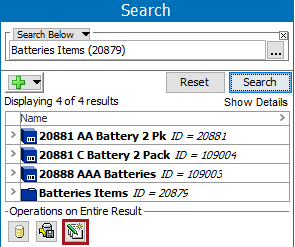
- Run on search results: Perform a search, and click the Bulk Update button (
 ).
).
For more on the Search tab in workbench, see the Search topic in the Getting Started / User Guide documentation here.
- The Bulk Update wizard displays and can involve the following steps:
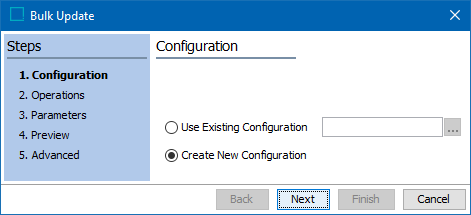
- Configuration (here) allows you to choose a previously saved configuration or create a new one.
- Operations (here) allows you to choose one or more operations that will run during the update.
- Parameters (here) allows you to supply any required parameters.
- Preview (here) allows you to review the expected results of the update.
- Advanced (here) allows you to set the required options and start the background process that runs the bulk update.