Web UI User Impersonation
In support situations it is often relevant to be able to see exactly what the user experiencing the issue is seeing, including data and error messages. Web UI user impersonation enables a privileged user to act as another user, but using their own password so that the impersonated user's password is not revealed. When impersonating someone, all privileges, views, and access are exactly matched to the user being impersonated.
Specific privileges have been created to support impersonation:
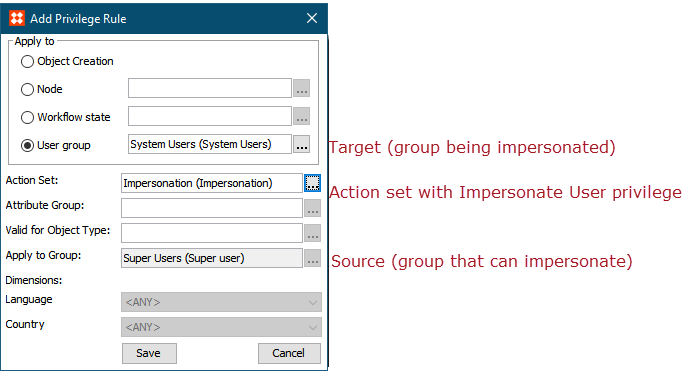
- Setup action Maintain Impersonation indicates that the user may maintain the impersonation privileges of others. Users with maintain impersonation privileges can assign the Impersonate User privilege to other groups, including specifying the target group that can be impersonated.
- User action Impersonate User enables any user with this privilege assigned to be able to impersonate the selected user group identified in the privilege setup.
Note: Applying any privileges to a user group (rather than node or workflow state) will have no effect; impersonation privileges are the only ones applicable to user groups.
Note: Impersonation can only be used in Web UI.
Any user with the Impersonate User privilege can impersonate any user in the target user group for which the privilege is configured. Impersonate functionality is added to the Web UI via the following components:
- Impersonate User Widget can be inserted in the homepage
- Corner Bar Impersonate User can be inserted in the corner bar
The impersonation components are only visible if the user is a member of a user group with impersonation rights for another group.
The impersonator impersonates another user by selecting the user in one of the user impersonation components. The Web UI will then start on the homepage, and the impersonator can now act as the impersonated. The impersonator can continue switching between impersonated users and return to act as the impersonator user as needed.
All actions made by the impersonator are logged as actions taken by the user being impersonated. However, for the sake of data governance it is logged in the system log, the impersonator user log, and the impersonated user log when an impersonator starts or stops impersonation.
For more information on setting up and using impersonation, see these topics:
- Homepage Widgets (see the Impersonate User Widget section) here
- Corner Bar Child Components (see the Corner Bar Impersonate User section) here
For more information on how impersonation works with the Analytics integration, see the Embedded Analytics Platform topic in the Analytics section here.