Creating a Data Policy
Within a data policy, metrics are used to measure data quality and express this evaluation numerically. There are three types of metrics:
- Completeness Metrics - Metrics that are based on groups of attributes. For information on creating and editing a completeness metric, see the Completeness Metrics topic in the System Setup documentation here
- Value Metrics - Metrics used to take an attribute value and transform these results into a score. For more information, see Value Metrics topic of the System Setup documentation here
- Function Metrics - Metrics based on the result of a an executed JavaScript function. For information on setting up a function metric, see the Business Function Metrics topic of the System Setup documentation here
Note: This topic will provide sample metrics. These samples should only be considered as guidance for explanation and not a codified recommended practice.
With at least one metric configured and one dataset definition configured, policies can be created to ensure that system data stays within the thresholds.
- On System Setup, right-click the Policies node. Select 'New Policy' from this menu.

- On the 'Create Policy' dialog supply information for the following parameters:
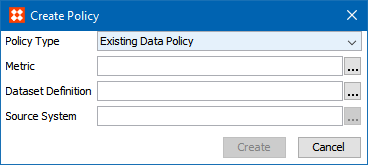
- For Policy Type, select whether this policy refers to for 'Existing Data' or 'Incoming Data.' Existing Data Policy is evaluating data that exists in STEP each night. Incoming Data Policy is evaluating only the incoming data from an Inbound Integration Endpoint of the Merge Golden Record type, allowing early warnings if the source system starts sending bad data.
- Select the metric that was set up earlier in this topic.
- Select the Dataset Definition that was defined in the Creating a Dataset Definition topic of this documentation here.
- If using the 'Incoming Data Policy' policy type, then a source system must be specified to limit the policy's focus.
- Click the 'Create' button to confirm the configuration.
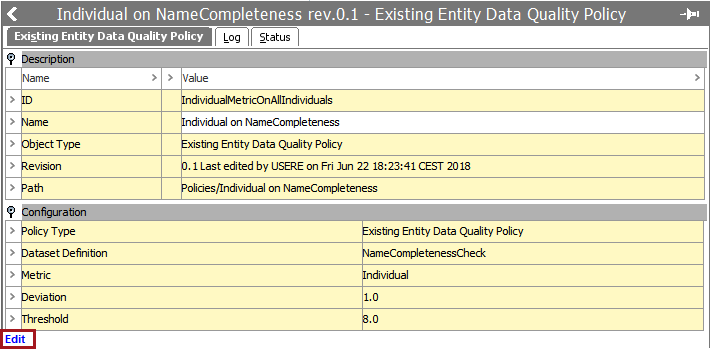
- A policy will be created. Note that the deviation is set to 1.0 and the threshold is set to a default of 8.0. Click 'Edit' to change these values.
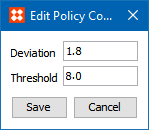
- Enter the desired value with a decimal point format. Click 'Save' to change these values.
Manually Starting a CMDM Monitoring Process
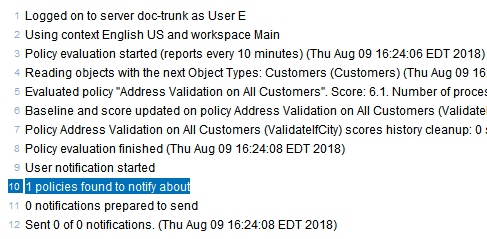
Should you wish to test a CMDM Monitoring Policy or to start a process as needed, the Maintain menu contains an option for starting the background process to monitor.
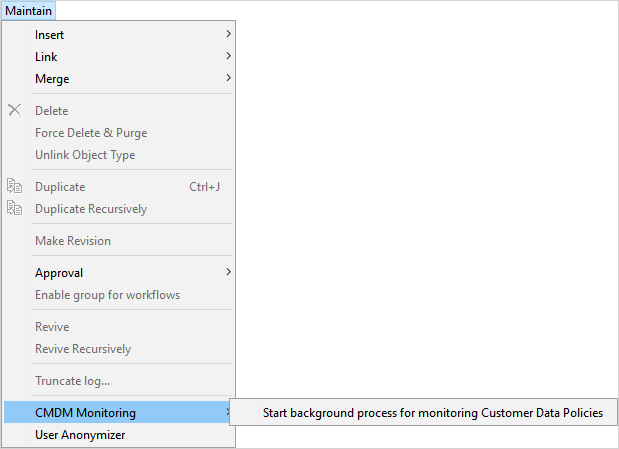
Once this option is selected, a background process will start. Once completed, it will show any notifications about this policy.